🤖 24/7 assistant for residents
The GC assistant allows residents to interact directly with the system, obtaining information, documents, and support instantly.
It works automatically and can be used with or without Artificial Intelligence.
🔍 Practical example
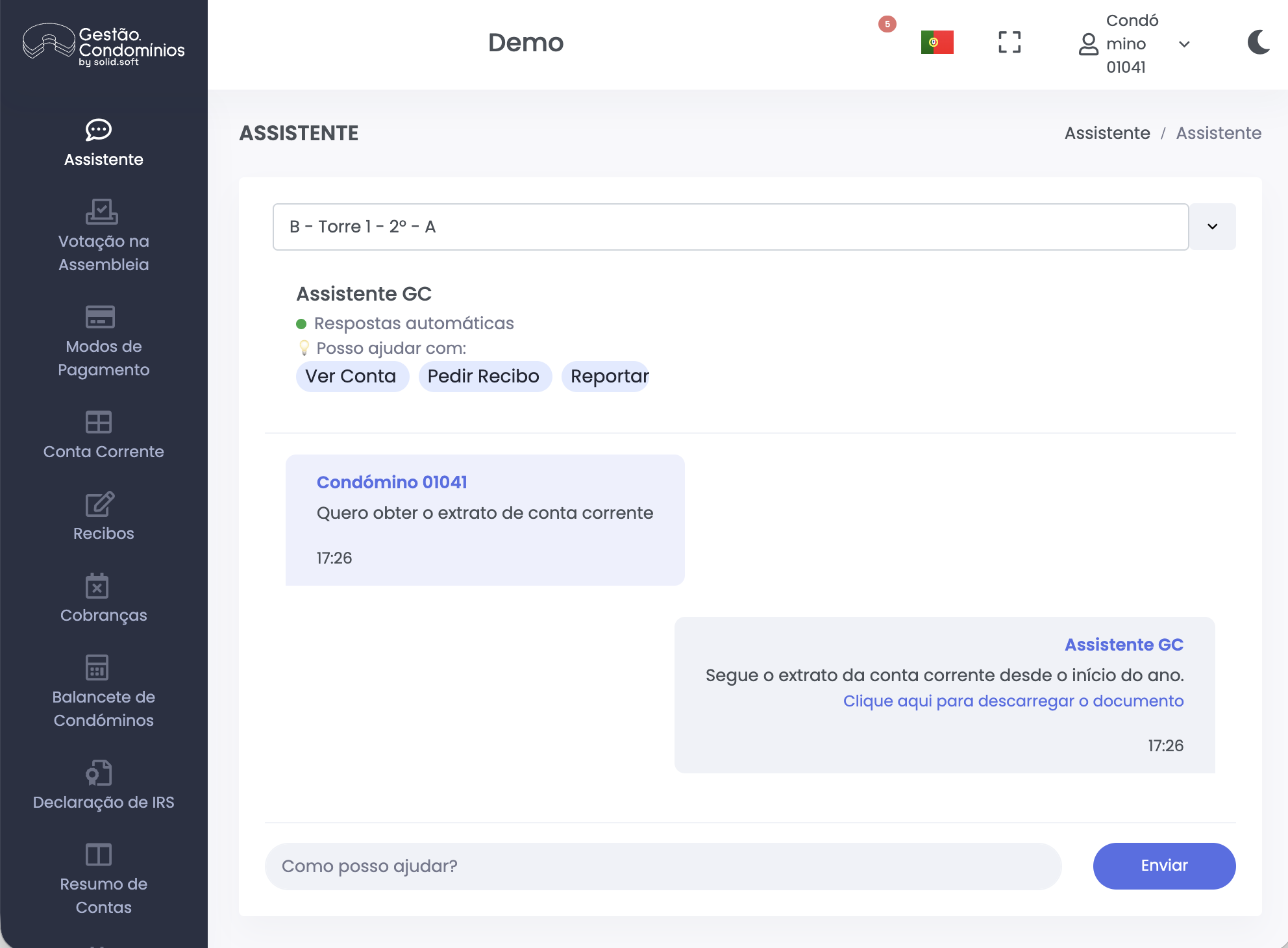
⚙️ What the assistant enables
📄 Request documents automatically
- Account statements
- Receipts
- Payment notices
- Reports and available documents
The system responds instantly with direct access to the requested document.
🛠️ Report occurrences
- Allows residents to report issues
- Automatic registration in the system
- Description provided directly by the resident
💬 Automatic responses (pre-configured)
- Frequently asked questions defined in Administration
- Standardized and immediate responses
- Full control by management
🧠 Artificial Intelligence (optional)
If the request does not match any of the previous scenarios:
- The assistant can use generative AI
- Allows answering open-ended questions
- Responses are generated automatically based on context
🗂️ Conversation tracking
All interactions performed through the assistant are recorded and can be accessed by the administration:
- Full conversation history
- Monitoring of resident requests
- Greater control and transparency in support
Access:
Administration >> AI >> Conversations
⚙️ How to configure
The assistant is configured at two levels: global (Administration) and per condominium.
1. Enable general AI features
Go to:
Administration >> AI >> Features
- Enable the assistant in the Resident Portal
- (Optional) Enable generative AI
- Configure other related features
2. Allow assistant access in the condominium
To allow residents to use the assistant, access must be enabled at the condominium level:
- Go to the desired condominium
- Open the resident portal settings
- Enable access to the Assistant
⚠️ Without this configuration, the assistant will not be available to residents, even if it is enabled in Administration.
3. Configure automatic responses (optional)
Go to:
Administration >> AI >> Automatic Responses
- Define frequently asked questions
- Configure automatic replies
4. View conversations
Go to:
Administration >> AI >> Conversations
- View interaction history
- Monitor requests and assistant usage
💡 How it works in practice
The assistant follows a smart flow:
- Checks for direct requests (documents, occurrences)
- Searches for configured automatic responses
- Only if needed, uses generative AI
⚠️ Important notes
- The assistant works even without AI enabled
- Generative AI is optional
- Only AI-generated responses consume actions
- Consumption: 1 action per 30 AI interactions per session
✅ Next step
Explore other AI features as well:
- How to improve emails with AI
- How to automatically describe occurrences
- How to generate budget suggestions