🌐 Online assistant on your company website
GC’s external chat allows you to provide an online assistant directly on your company website, creating an immediate communication channel with clients and visitors.
It can be used even without generative Artificial Intelligence, responding based on pre-configured questions and automated flows.
🔍 Practical example
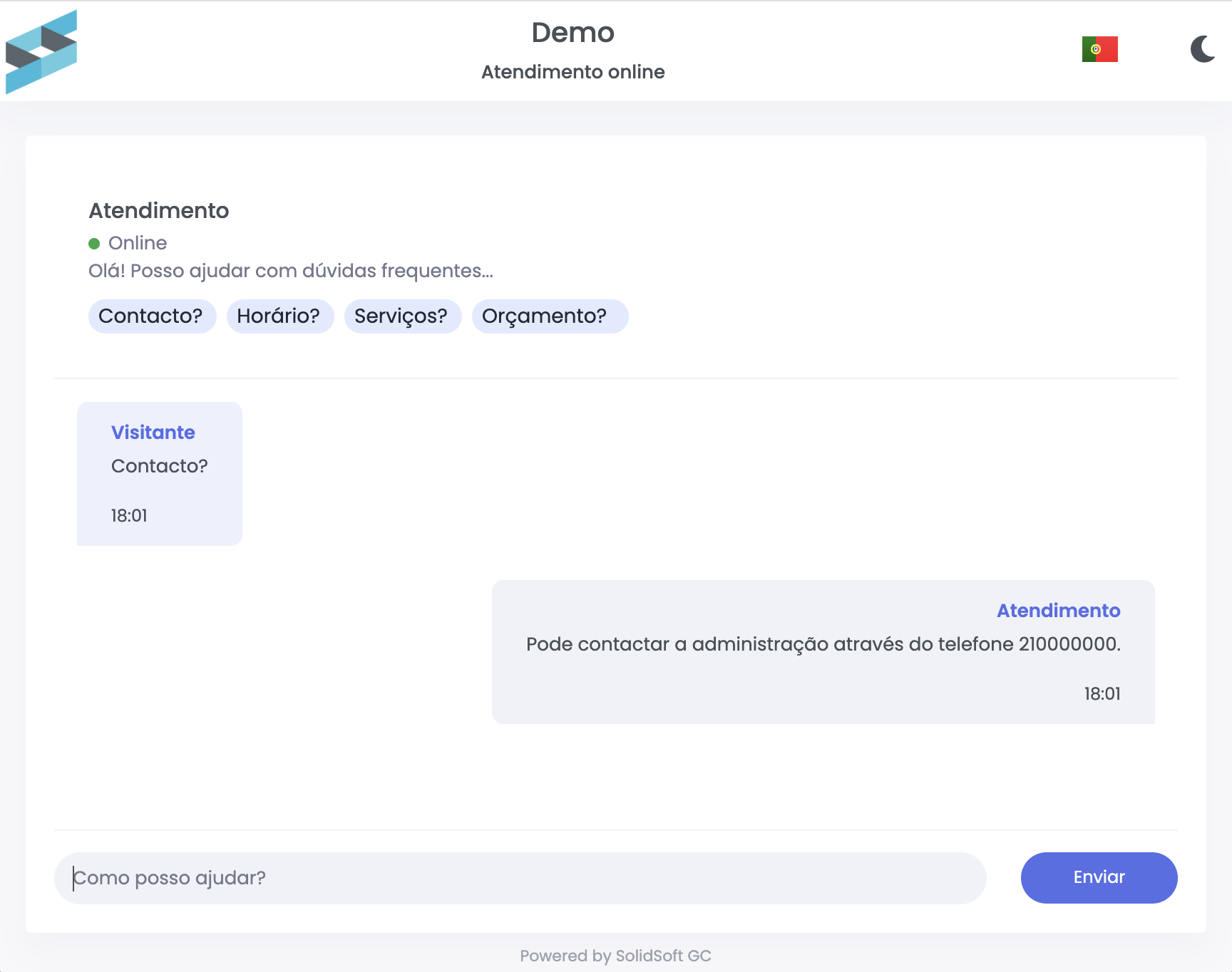
In the public demo, the assistant is presented as a channel to answer questions and handle immediate requests, including general information, budget requests, occurrence reporting, and frequently asked questions.
👉 Try the chat in action:
https://chat.gcsoftware.pt/demo.html
⚙️ What the external chat enables
💬 Answer frequently asked questions
- Questions and answers configured by the company
- Automated support for visitors
- Instant responses without manual intervention
🛠️ Route requests
- Budget requests
- Occurrence reporting
- General contact and support inquiries
🧠 Generative Artificial Intelligence (optional)
If a question does not match predefined responses or flows:
- The chat can use generative AI
- Allows answering open-ended questions
- Actions are only consumed in these cases
🗂️ Conversation tracking
All interactions in the external chat are recorded and can be accessed by the administration:
- Conversation history
- Request tracking
- Greater control over provided support
Access:
Administration >> AI >> Conversations
⚙️ How to configure
1. Enable external chat
Go to:
Administration >> AI >> External Chat
Enable the option:
- Enable company external chat
2. Choose how to use it
The system provides three deployment options:
🔗 Direct link
- Generates a dedicated link to share with clients and visitors
- Can also be used via QR code
🌍 Website link
- Generates an HTML link to add to your website
- Ideal for buttons or “Contact us” links
🧩 Widget
- Allows direct integration into your website via a floating button
- You can define:
- position (left or right)
- button color
- panel width
3. Configure automatic responses
Go to:
Administration >> AI >> Automatic Responses
- Define frequently asked questions
- Configure automatic replies for visitors
4. Enable generative AI (optional)
If you want to allow open-ended responses when no predefined answer exists:
Go to:
Administration >> AI >> Features
- Enable generative AI for external chat
💡 How it works in practice
The external chat follows a progressive logic:
- Checks automatic responses and predefined flows
- Responds immediately when there is a match
- Only if necessary, uses generative AI
⚠️ Important notes
- External chat can work without generative AI
- Generative AI is optional
- Only AI-generated responses consume actions
- Consumption: 1 action per 30 AI interactions per session
- Integration code can be copied directly from the administration area
✅ Next step
Explore other AI features as well:
- How to activate Artificial Intelligence in GC
- How to improve emails with AI
- How to automatically describe occurrences
- How to generate budget suggestions
- How to use the assistant for residents