Artificial Intelligence in GC allows you to automate daily tasks, improve communication with residents, and reduce the time spent on manual processes.
Activation is done in two simple steps: starting the plan (free trial) and enabling the features.
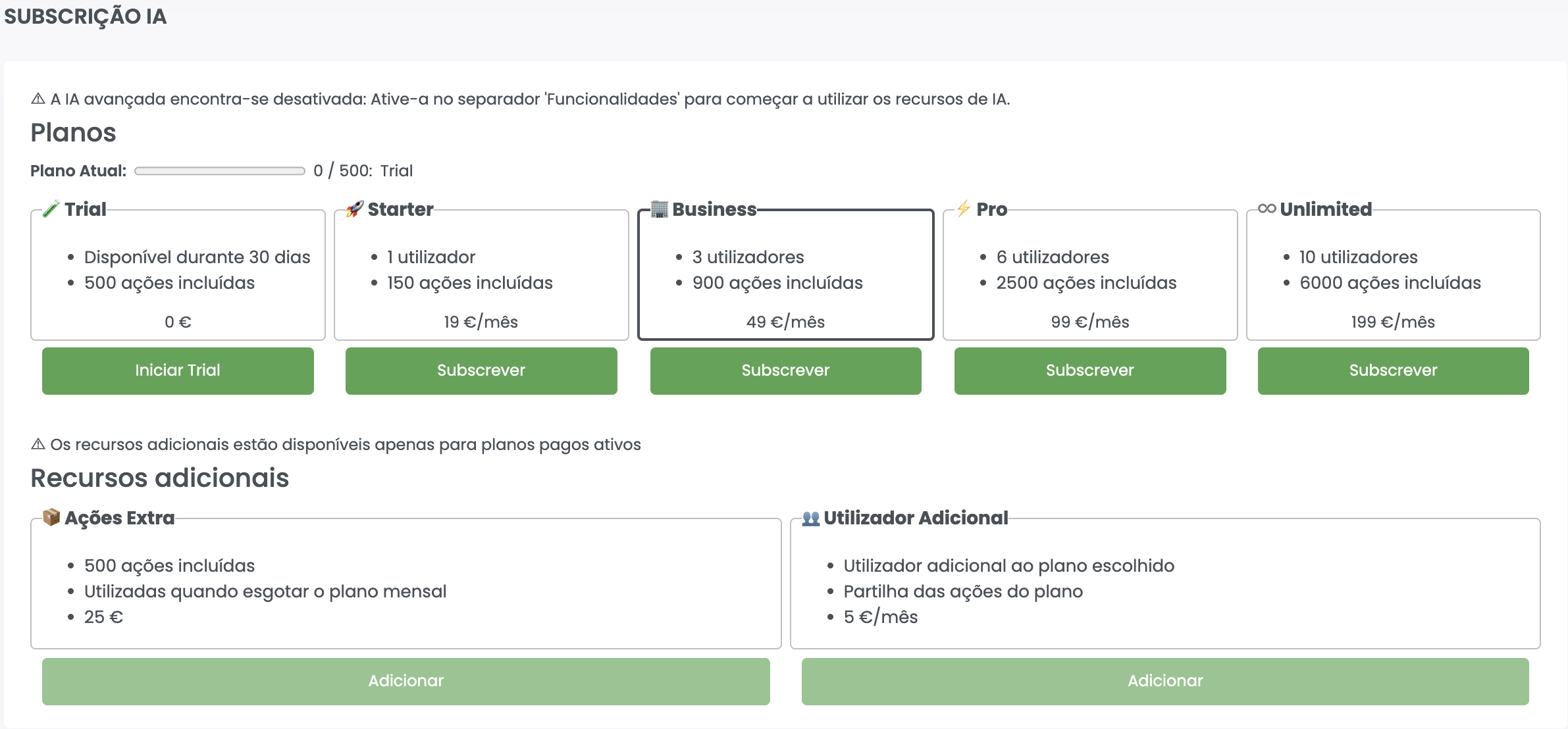
🚀 Step 1: Start the Free Trial
-
Go to:
Administration >> AI >> Subscription -
In the Trial plan, click Start Trial
- The trial lasts 30 days
- Includes an initial number of actions for usage
- No commitment required
After this step, AI becomes available, but it is not yet active in the features.
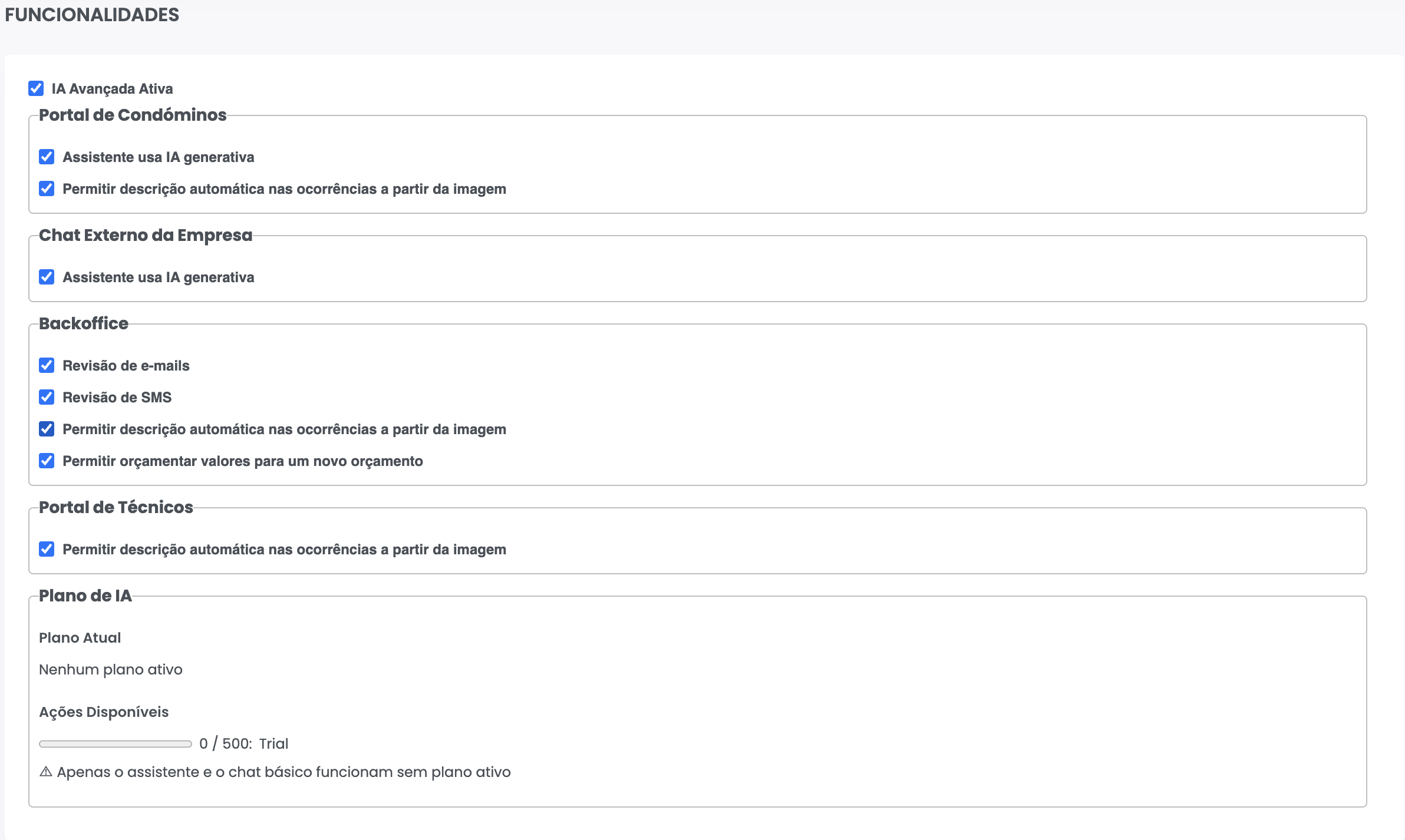
⚙️ Step 2: Enable AI Features
-
Go to:
Administration >> AI >> Features -
Enable the option:
Advanced AI Enabled -
Select the features you want to use:
- Automatic email review
- SMS review
- Automatic occurrence description from images
- Budget value suggestions
- Resident assistant (portal and website)
- Click Save
From this point on, Artificial Intelligence is active and ready to use within the system.
💡 What Happens After Activation
Once activated, AI becomes available across key areas of the system:
- While writing emails
- When registering occurrences with photos
- During budget creation
- In automatic support for residents (portal and external chat)
⚠️ Important Notes
- AI operates based on available actions linked to the active plan
- During the trial, you can test all included features
- If no plan is active, only limited/basic functionality may be available
✅ Next Step
After activation, we recommend exploring the available features:
- How to improve emails with AI
- How to automatically describe occurrences
- How to generate budget suggestions
- How to use the resident assistant