This process takes place on the day of the assembly and is divided into three phases: entry registration, voting cards, and recording votes.
1. Entry Registration
Go to Meetings > Meeting Agenda, open the relevant assembly, and click Entry Registration.
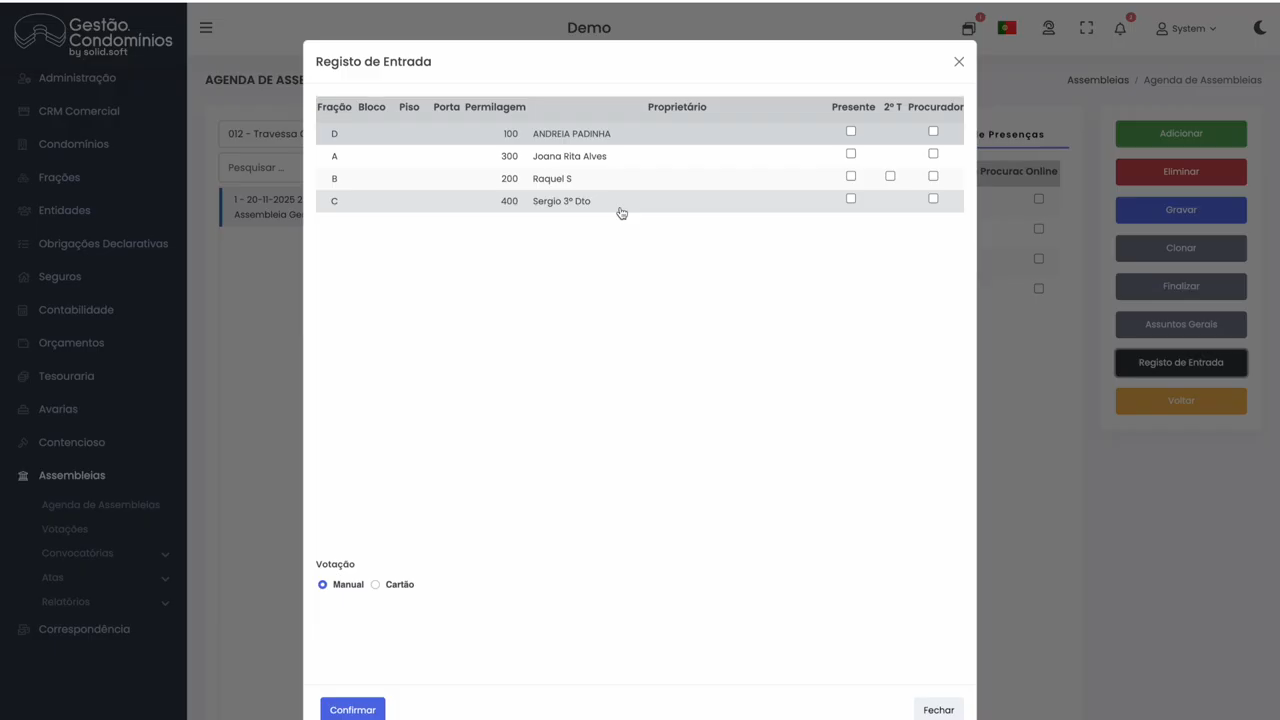
The list of owners is displayed in alphabetical order. For each owner who arrives:
- Mark attendance — click the corresponding titleholder:
- 1st titleholder — the most common case;
- 2nd titleholder — if the second titleholder is attending instead;
- Proxy — if a representative is attending; in this case, enter the proxy’s name;
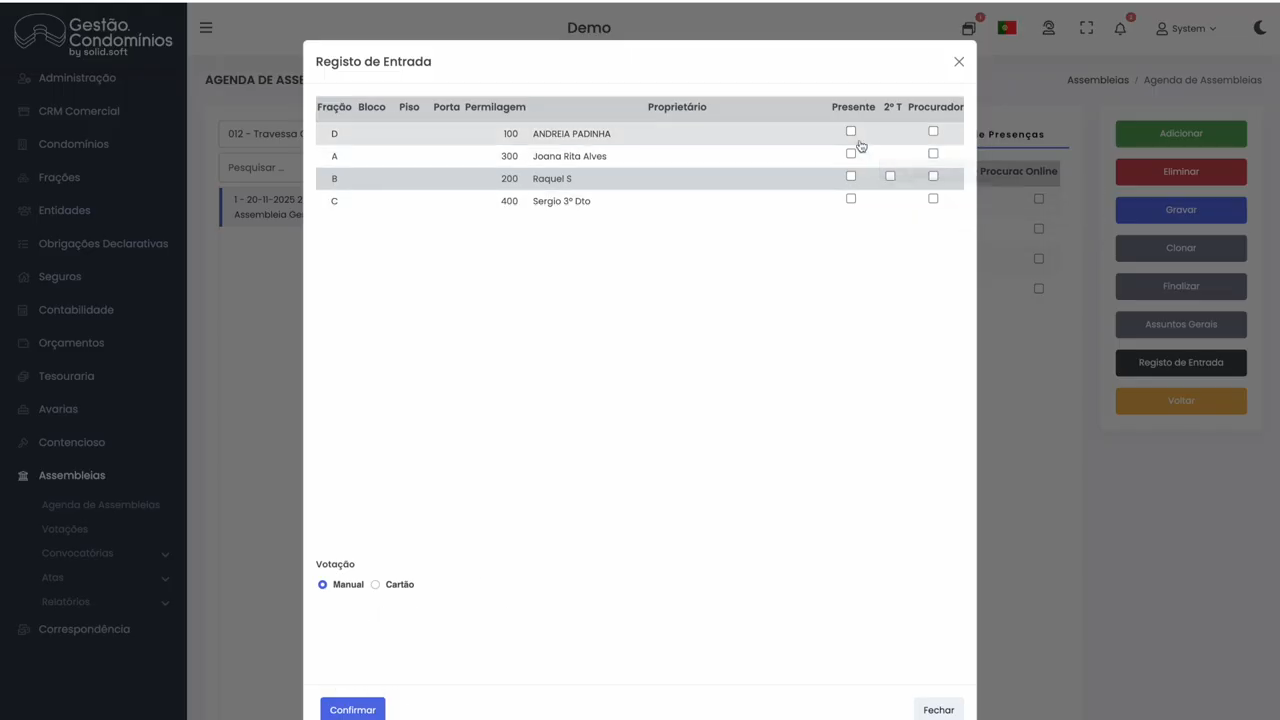
- Set the voting method for each owner:
- Manual — the manager registers the vote (yes / no / abstain) directly in the backoffice;
- Card — the owner votes using a physical card (green = in favour, red = against), read with a barcode scanner;
- Portal — the owner votes through the owners’ app or portal.
2. Voting Cards
Voting cards are reusable across assemblies. To print them:
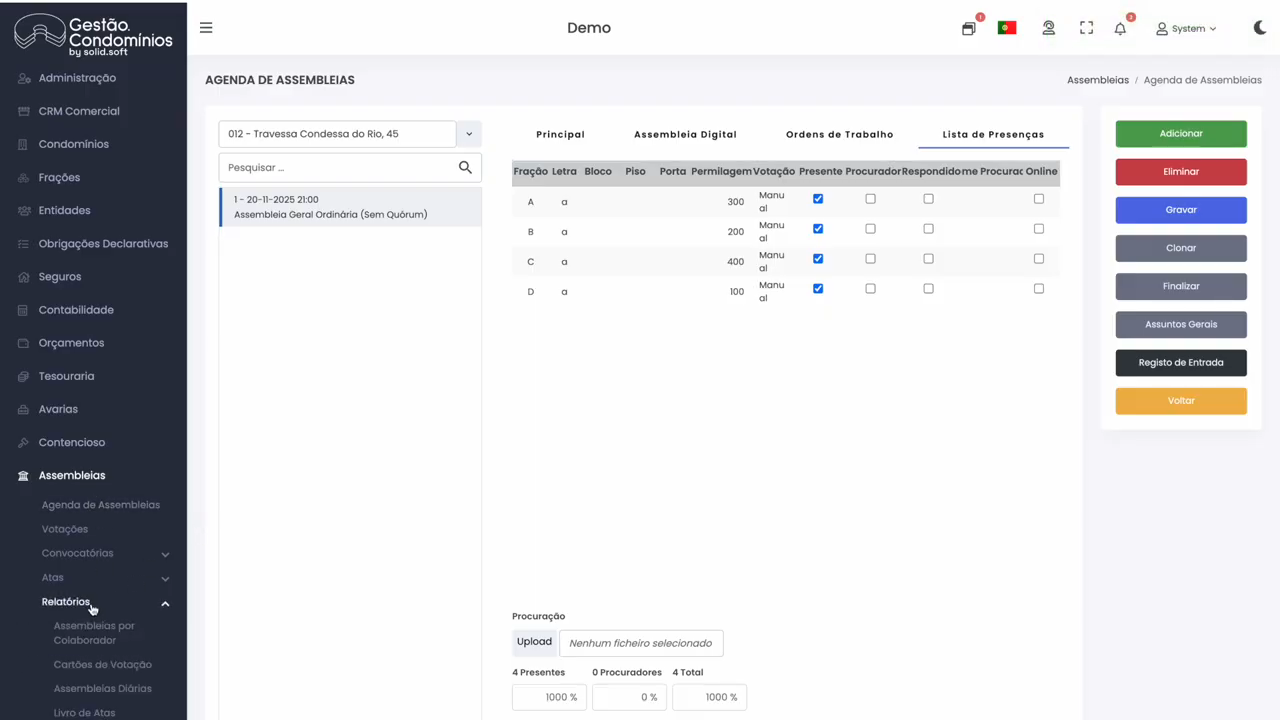
- Go to
Meetings > Reports > Voting Cards; - Enter the quantity to print (e.g. 100 cards for the entire company).
Each owner receives a green card (in favour) and a red card (against).
At the point of entry, use the barcode scanner to read both the green and red cards of each owner, associating them with their unit.
ℹ️ This association is essential so the system knows which card belongs to which owner at the time of voting.
3. Voting
Go to Meetings > Voting. Select the condominium and assembly, then add the agenda items to be voted on.
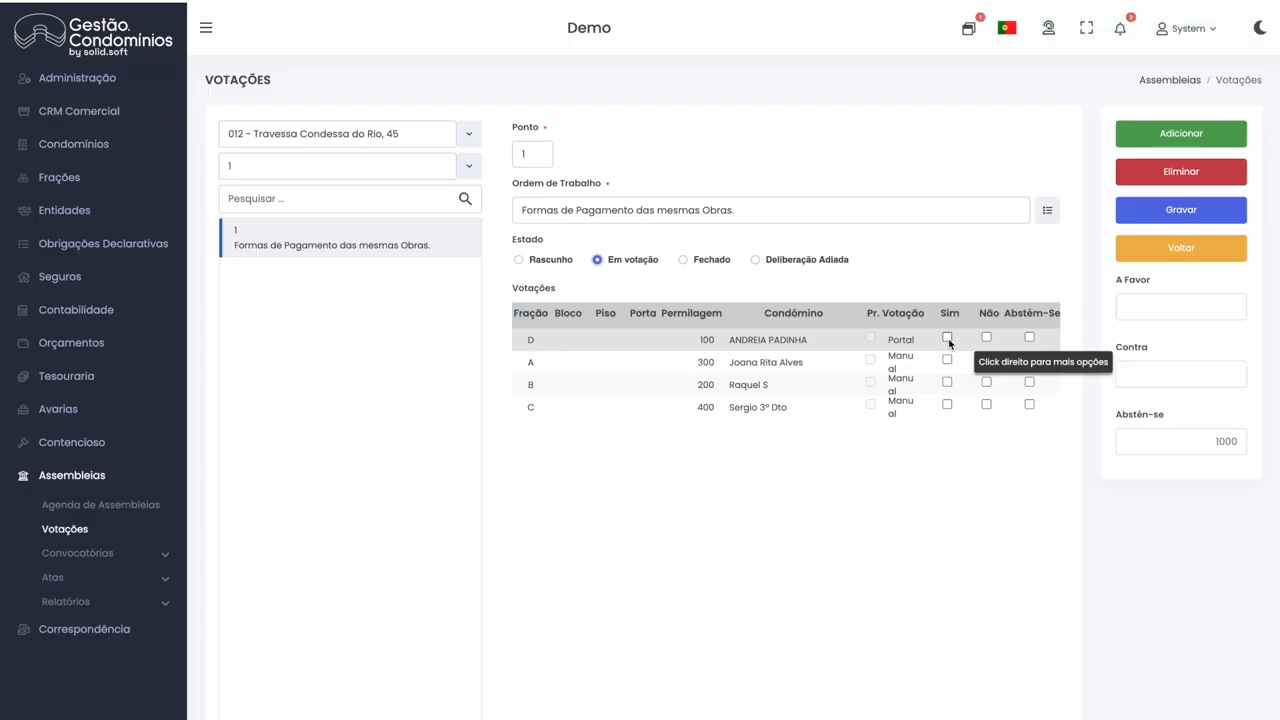
For each item:
- Select the agenda item and click Save;
- Change the status from Draft to Voting Open;
- Record votes according to the method set for each owner:
- Manual → select Yes, No, or Abstain for each owner;
- Portal → the owner votes in the app and the result appears automatically in the backoffice;
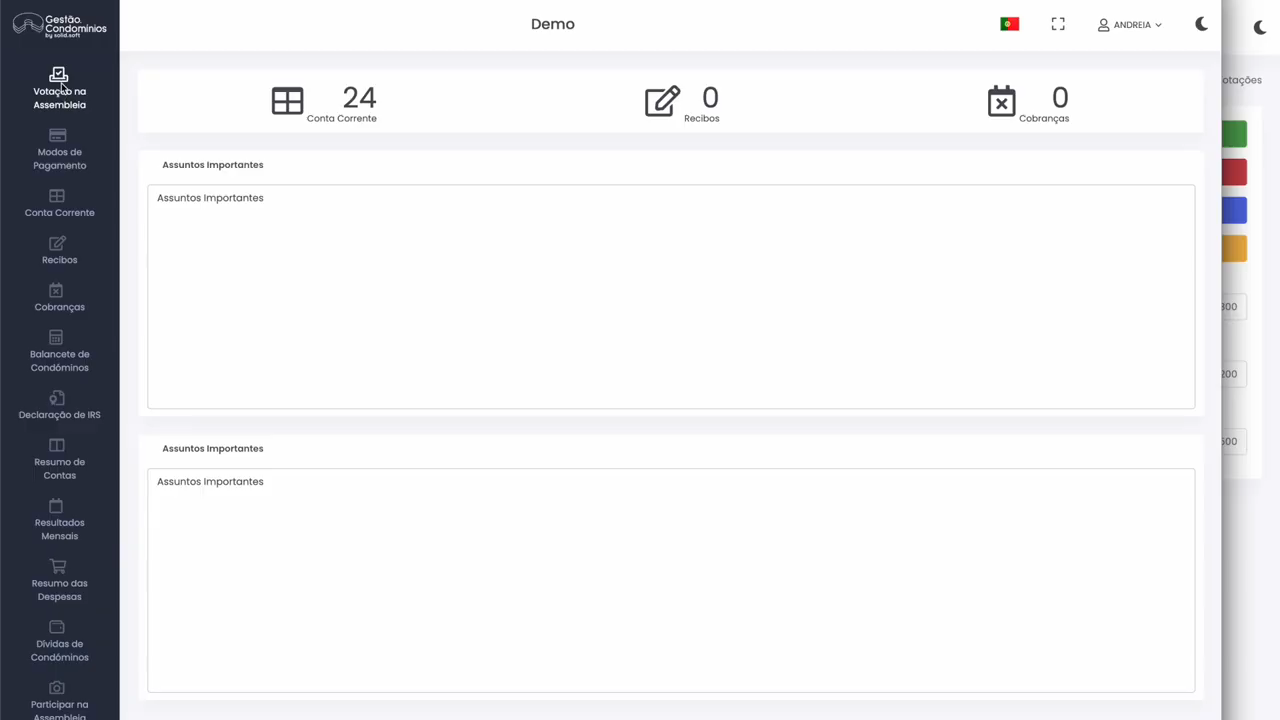
- Card → scan the card presented by the owner with the barcode scanner.
- View the results as a text or grid, showing the weight of each vote;
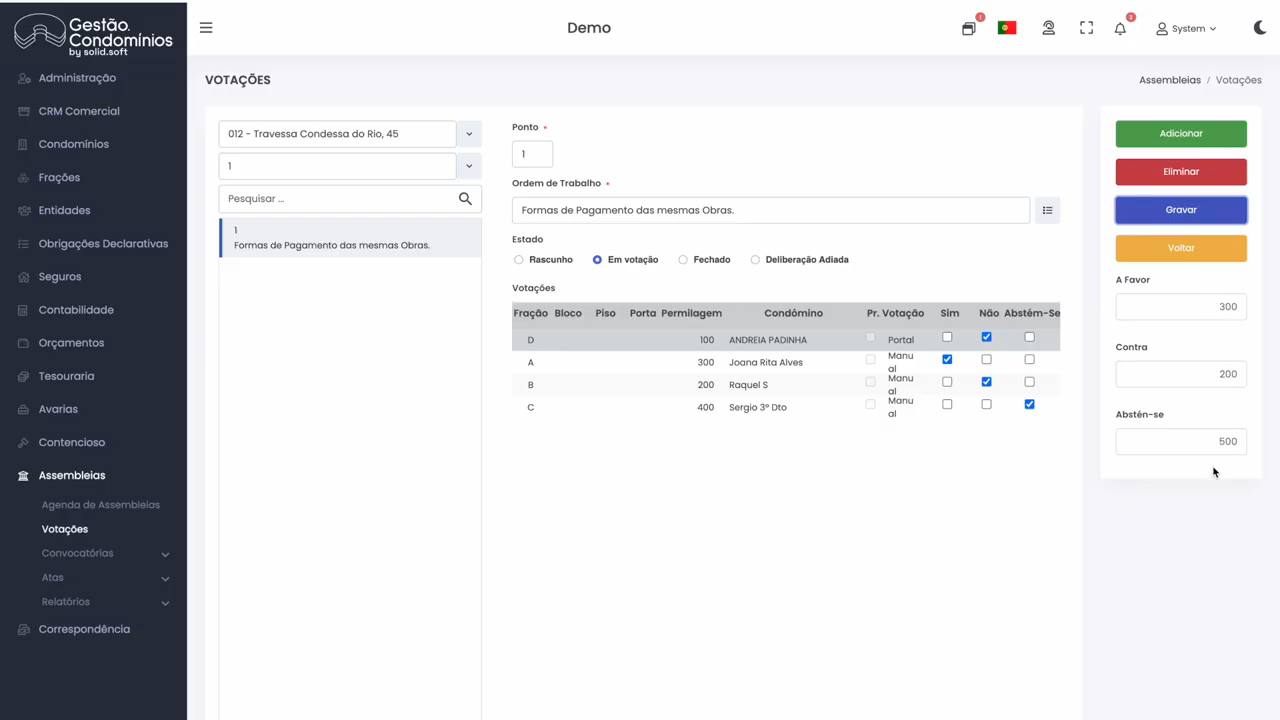
- You can copy the results (as text or grid) to paste directly into the minutes;
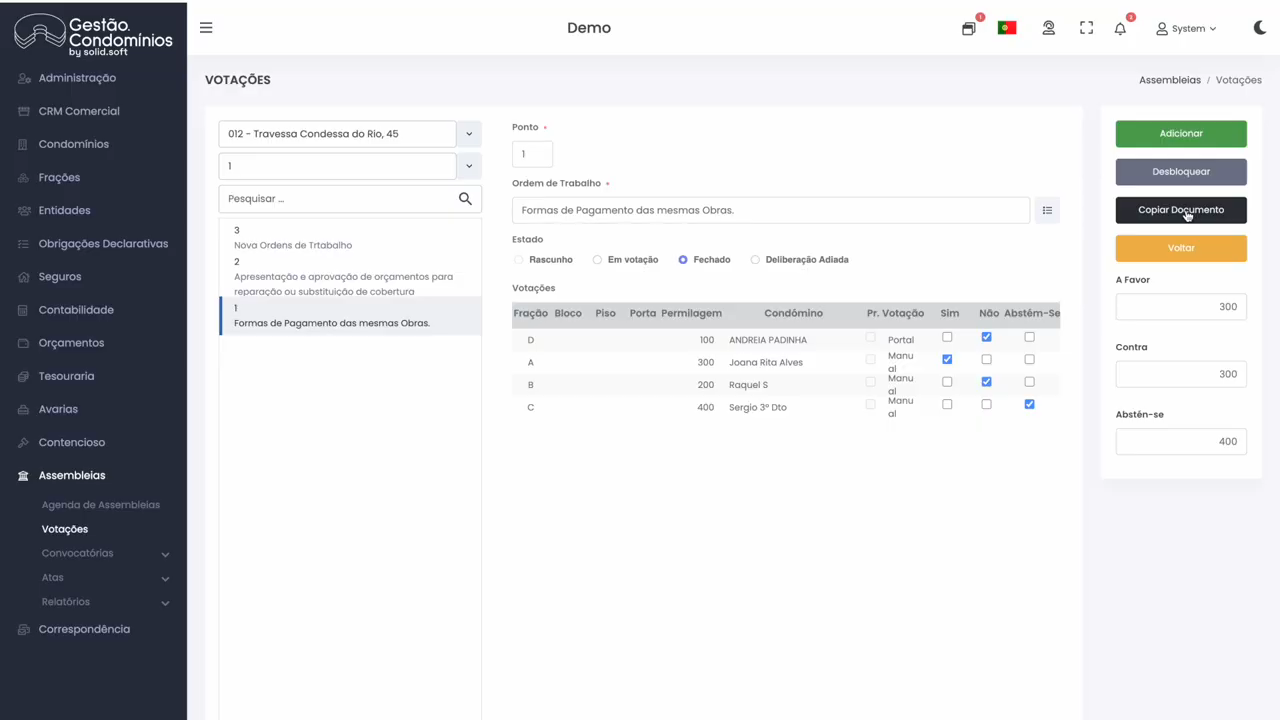
- After recording all votes, click Close to lock the item.
ℹ️ If a vote does not proceed, change the status to Deferred Resolution.
Adding unplanned agenda items
If topics arise during the assembly that were not included in the notice:
- Click Add;
- Instead of selecting from the list, type the name of the new item directly;
- Click Save — the item becomes available for voting.
ℹ️ After the assembly, prepare the minutes using the Word Add-In and send them to unit owners: Add-In – Minutes Preparation Send Minutes