To create a new assembly, go to Meetings > Meeting Agenda and click Add.
Main Tab
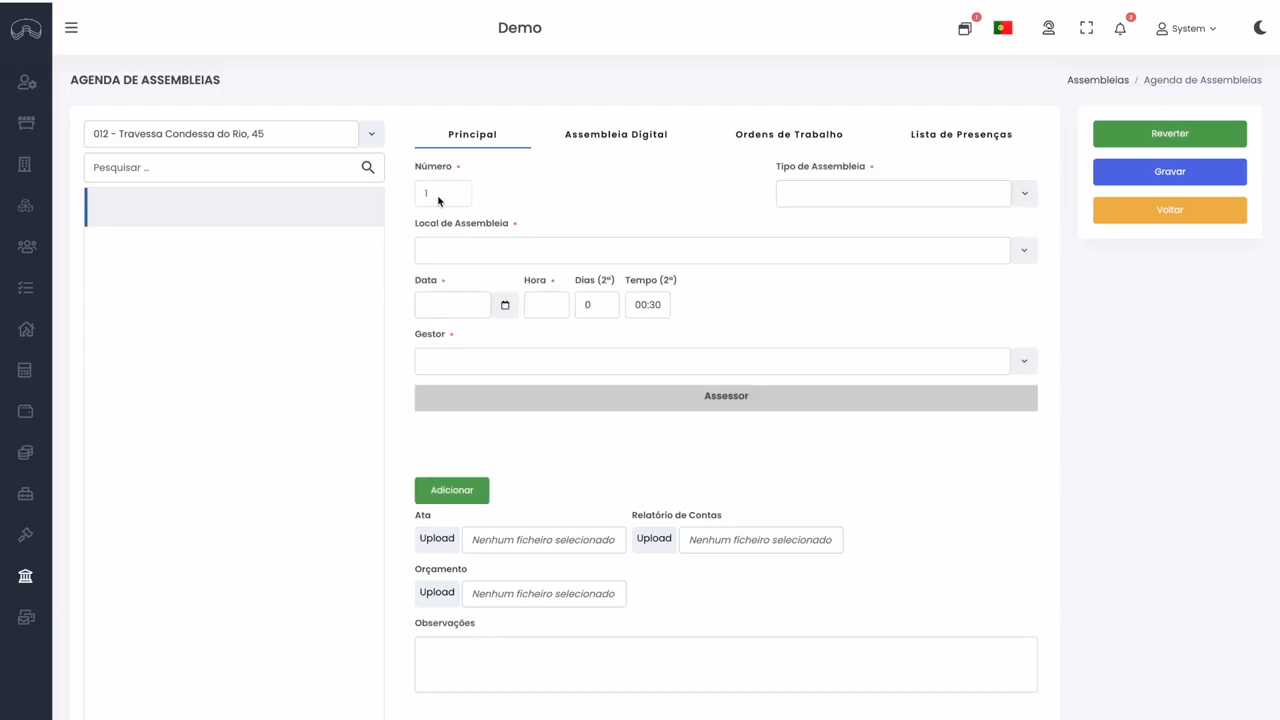
- Number — generated automatically. To switch to manual numbering, change the setting in
Administration > Parameters; - Assembly type — select the appropriate type;
- Location — select the venue. This table can be managed in
Administration > Tables. The location can also be pre-configured in the condominium record; - Date and time — set the start date and time;
- Second assembly — specify the number of days after the date, or the number of minutes after the time, for the second assembly in case the first lacks quorum.
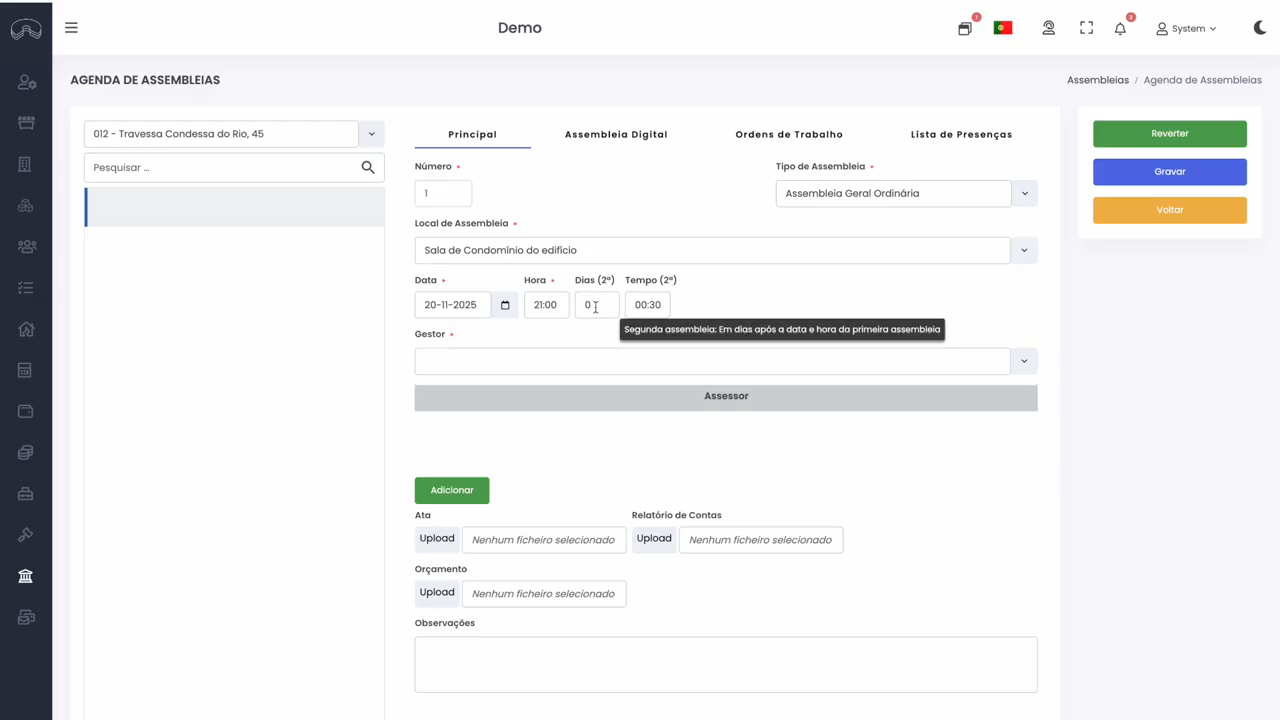
Example: assembly at 9:00 PM with 30-minute tolerance → second assembly at 9:30 PM;
- Manager and assessor — assign the responsible manager and, if applicable, the assembly assessor;
- Attachments — you can already attach the accounts report and the budget. These documents will be automatically included when the notice is issued.
⚠️ The Minutes field is only for attaching the minutes after the assembly takes place;
- Observations — free text field for internal notes;
- Click Save.
Digital Meeting Tab
If the assembly will be held digitally or in a hybrid format (in-person + digital):
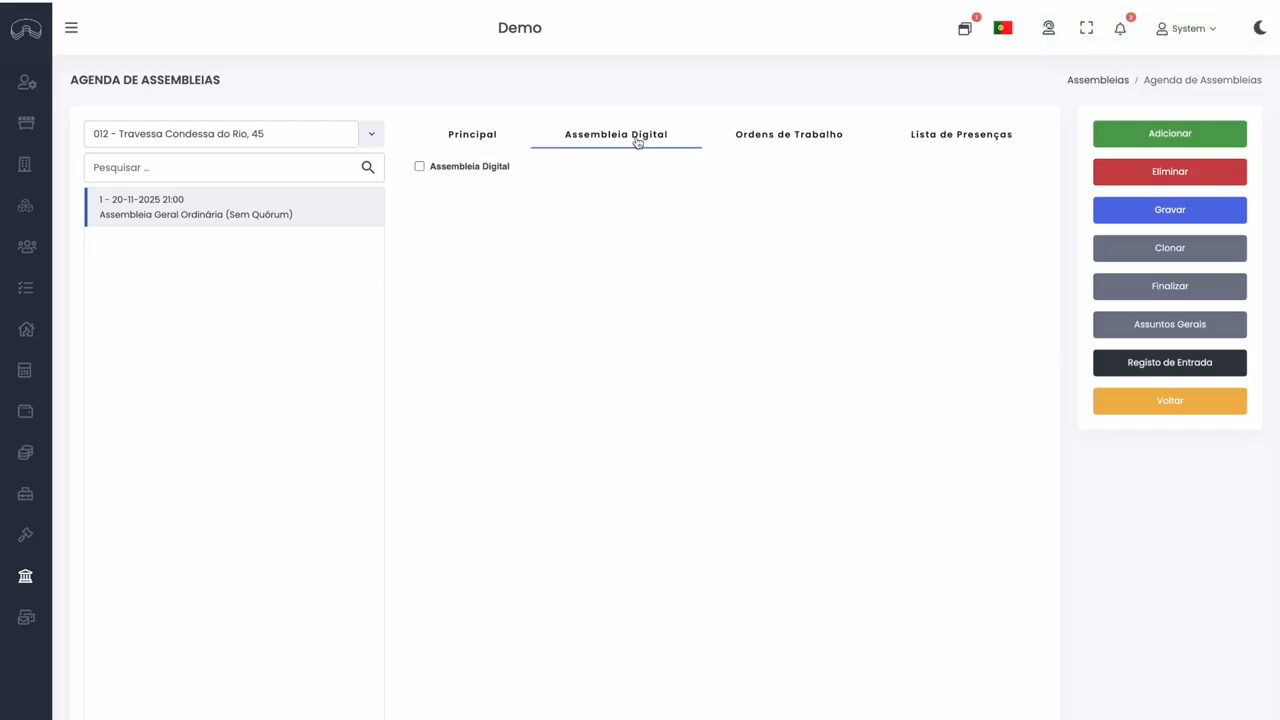
- Enable the corresponding option;
- Select the platform (e.g. Zoom, Teams, etc.);
- Enter the meeting access link.
ℹ️ This information is dynamically inserted into the notice and displayed in the owner portal and mobile app. Owners can click the link to join the assembly directly.
If the assembly is in-person only, leave these options disabled.
Agenda Items Tab
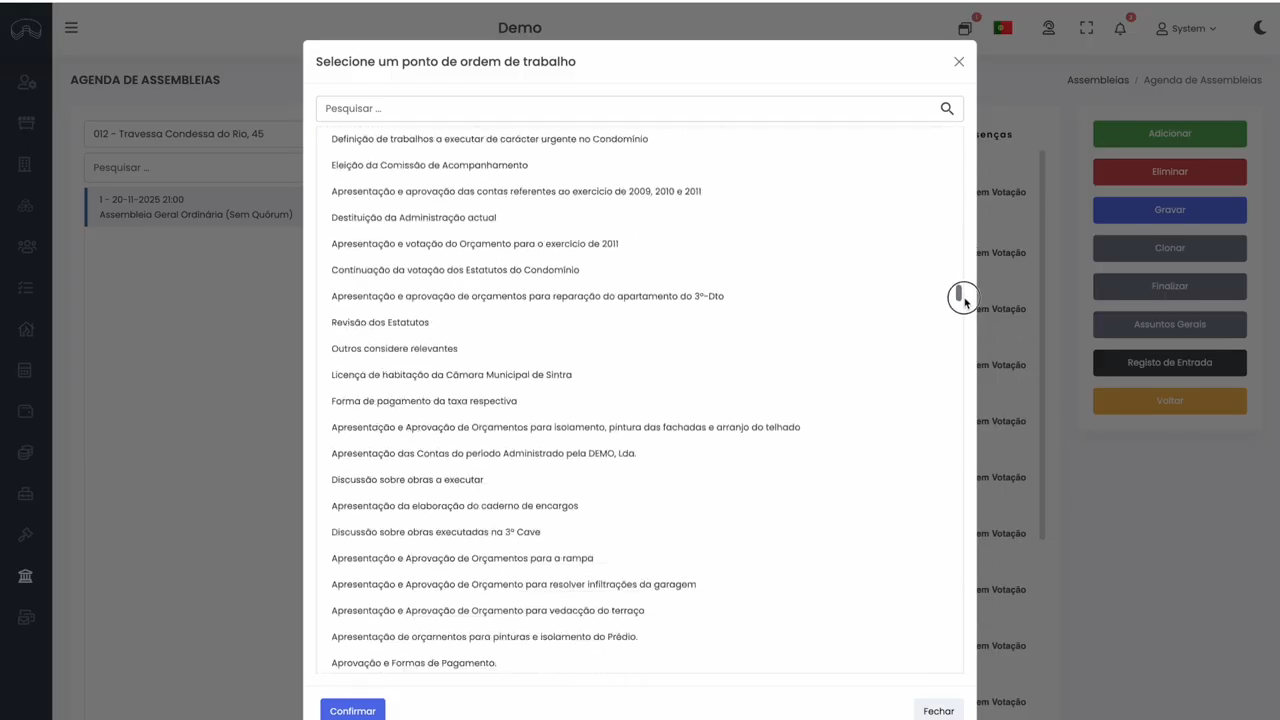
Add the agenda points for the assembly:
- Click the magnifier to select items from the pre-configured table;
- To add sub-items, click the + next to the relevant item;
- If an item is not available in the table, go to
Administration > Tables > Agenda Itemsto add it; - Click Save.
Attendance List Tab
The attendance list is empty at this stage. ✅ It will be filled in automatically when the notice is issued.
Other available options
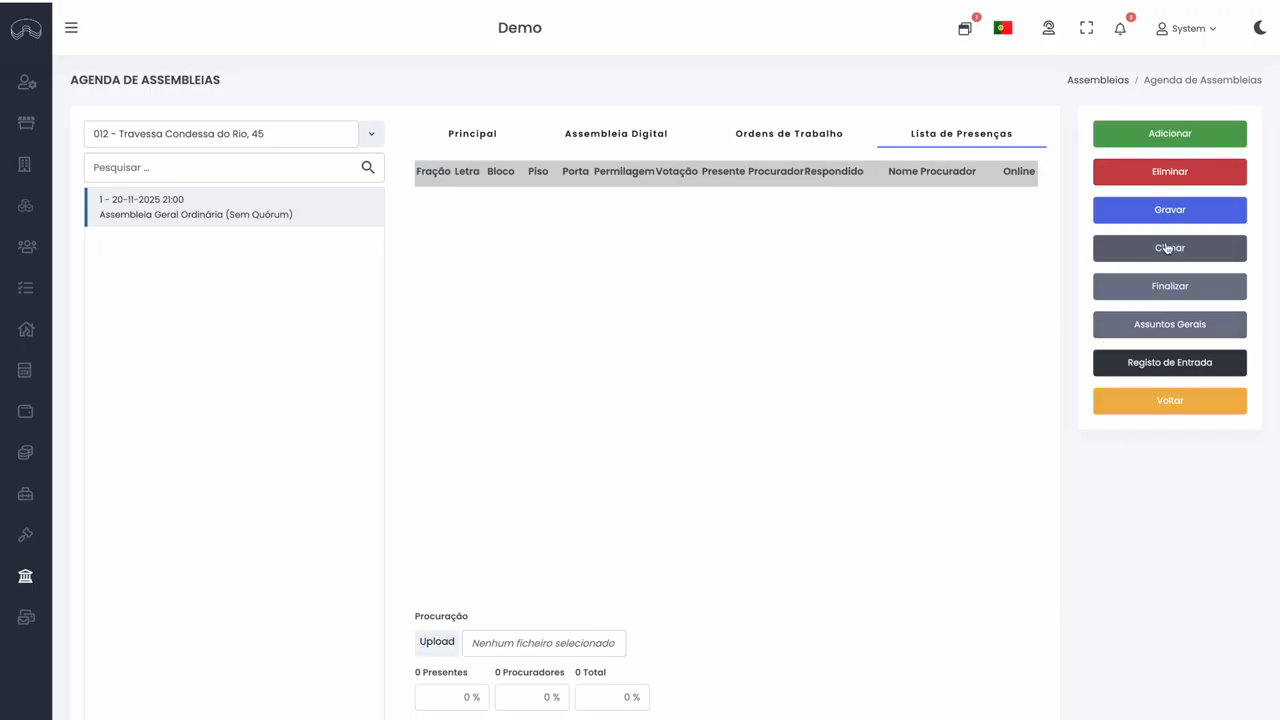
| Option | Description |
|---|---|
| Delete | Removes the assembly |
| Clone | Duplicates the assembly |
| Finalise | Locks the assembly after it takes place |
| Other general matters | Records unplanned topics discussed at the meeting |
| Entry registration | Used on the day of the assembly to record attendance |
ℹ️ The next step is to send the notice to unit owners: Send Notices