🔐 When your company’s administrator turns on two-step verification (2FA), the password is no longer enough on its own — the system also asks for a 6-digit code to confirm it’s really you. There are two moments to know about: the first sign-in (pairing) and subsequent sign-ins (verification).
First sign-in: pair an authenticator app
If your company chose the App (TOTP) method and you don’t yet have an authenticator app linked to your account, you’ll see this screen on first sign-in:
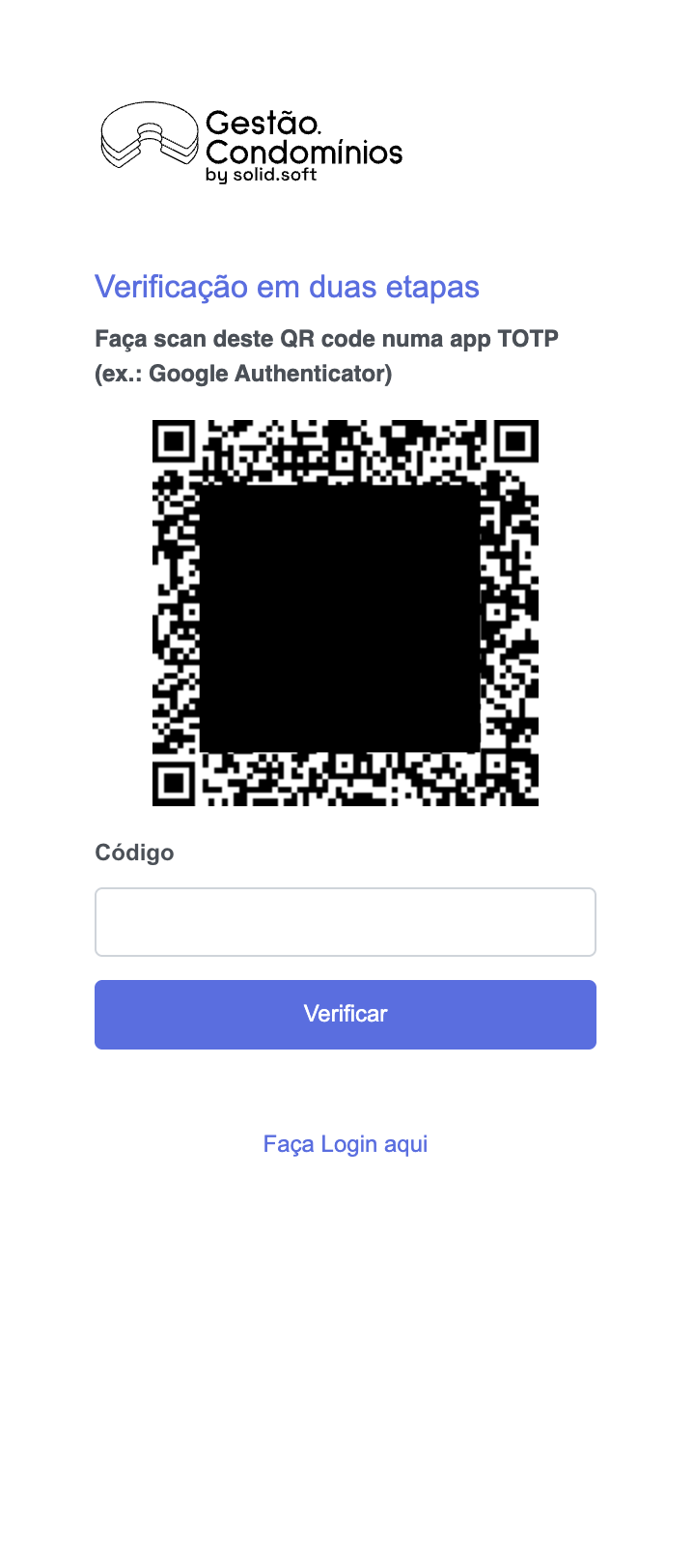
📱 Scan the QR code with one of the free apps:
- Google Authenticator (iOS / Android)
- Microsoft Authenticator (iOS / Android)
- Authy (iOS / Android / Desktop)
After scanning, the app starts generating a 6-digit code that changes every 30 seconds. Type the current code into the Code field and click Verify. From then on, the app is paired with your account — you won’t need to scan again.
If you change phone and lose the app, the administrator can use the Reset 2FA button on your record, and next time you sign in you’ll see this screen again to pair the new app.
Subsequent sign-ins: enter the code
Once the app is paired (or if the method is E-Mail or SMS), normal sign-in shows this screen:
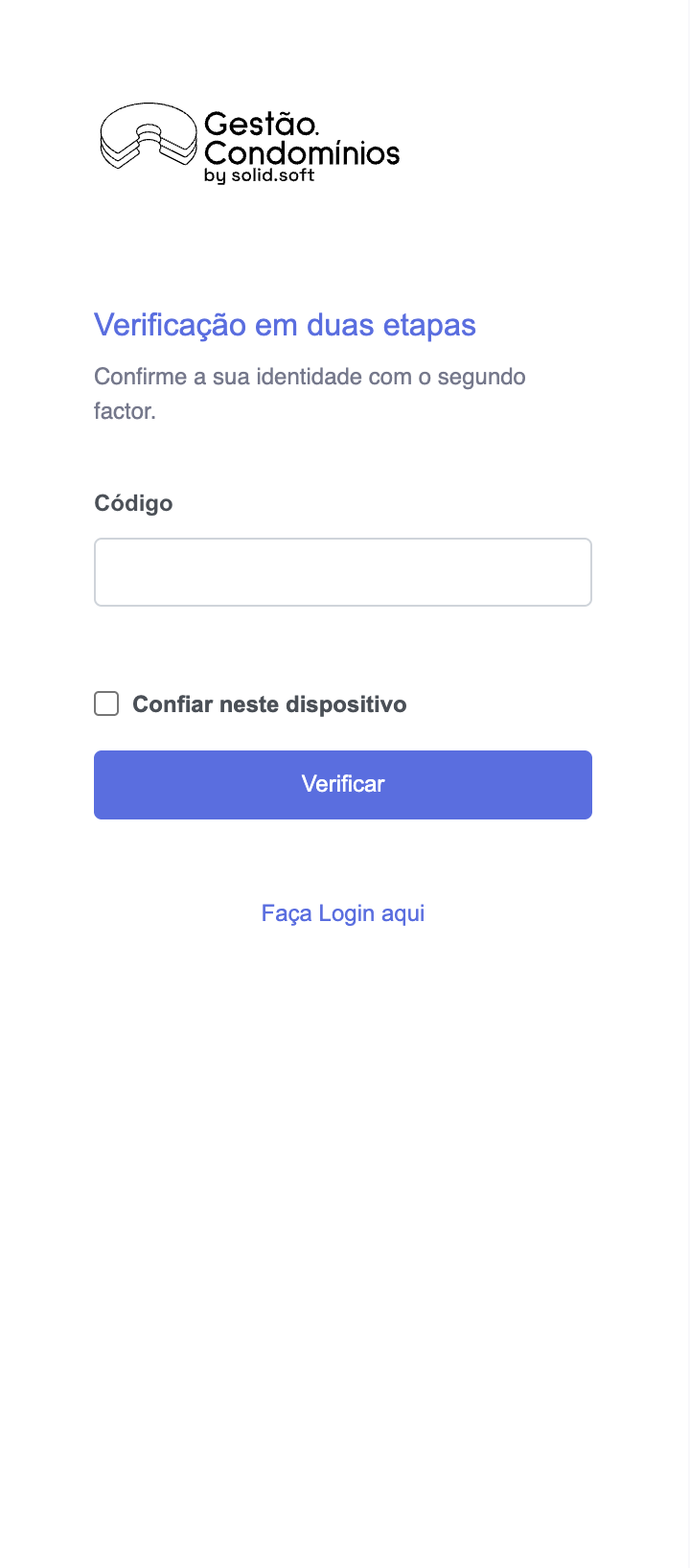
Open the authenticator app, copy the current code and paste it in the Code field — or, if the method is E-Mail/SMS, wait for the code to arrive in your inbox or on your phone. Click Verify.
Trust this device
The Trust this device check skips the 2FA prompt on this browser for 30 days. It’s useful on your personal work computer. Don’t tick it on shared computers (open-plan workstations, kiosks, hotel computers) — anyone with your username and password could sign in without the second factor from that device.
Available methods
Depending on what the administrator chose, the second factor can arrive in three different ways:
- App (TOTP) — the code comes from the authenticator app on your phone. Works without mobile data, as long as the phone’s clock is correct.
- E-Mail — the code arrives at the e-mail address on your record. Valid for 5 minutes.
- SMS — the code arrives by SMS on your correspondence number. Valid for 5 minutes. If the company has no SMS service / credit, the system automatically falls back to e-mail.
Resend code (E-Mail / SMS)
If the code is slow to arrive or you lost the e-mail/SMS, click Resend e-mail or Resend SMS right on the verification screen. A new code is issued (the previous one stops working).
Available for the following software:
✅ GC Software
✅ Client Portal
✅ Technician Portal
✅ AddIn