This is the recommended way for Gmail (free accounts and Google Workspace): you only need the address and an app password created in your Google account. GC fills in the Gmail servers by itself.
Google does not recommend app passwords (it prefers consent-based connections), but it still provides them and has not announced their end. They are the simplest and most stable way to connect Gmail to GC.
1. Turn on 2-Step Verification
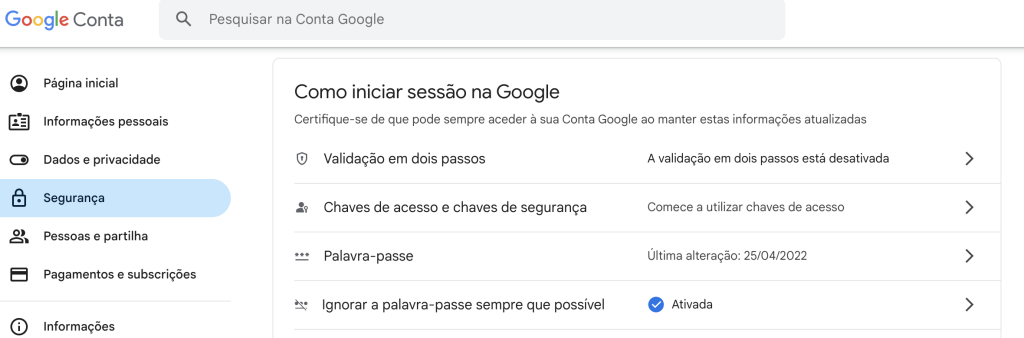
The app password only exists with 2-Step Verification turned on (if you already have it, skip this step).
- Go to your Google account
- In the menu, select Security
- Under “How you sign in to Google”, turn on 2-Step Verification
2. Create the app password
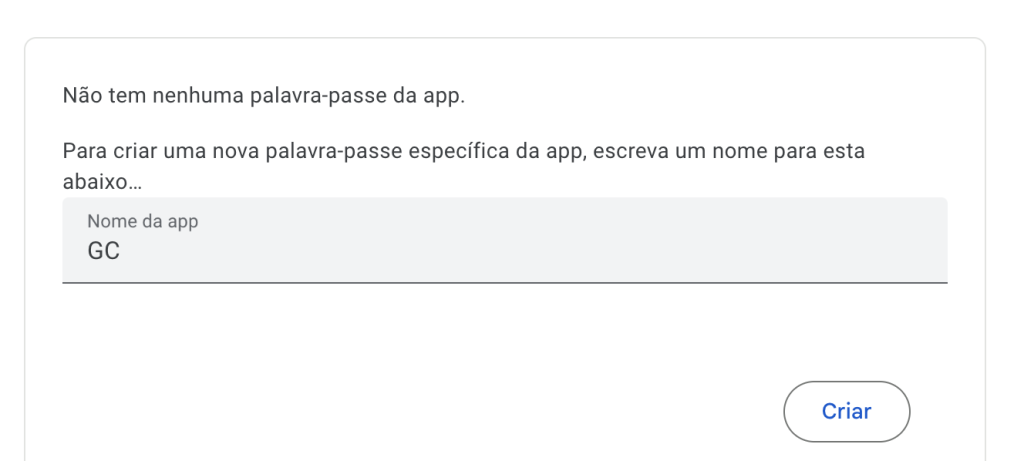
- In GC, with the Gmail App Password type chosen, click Create App Password — it opens Google’s page (or go directly to myaccount.google.com/apppasswords).
- Give it a name (for example, “GC”) and click Create.
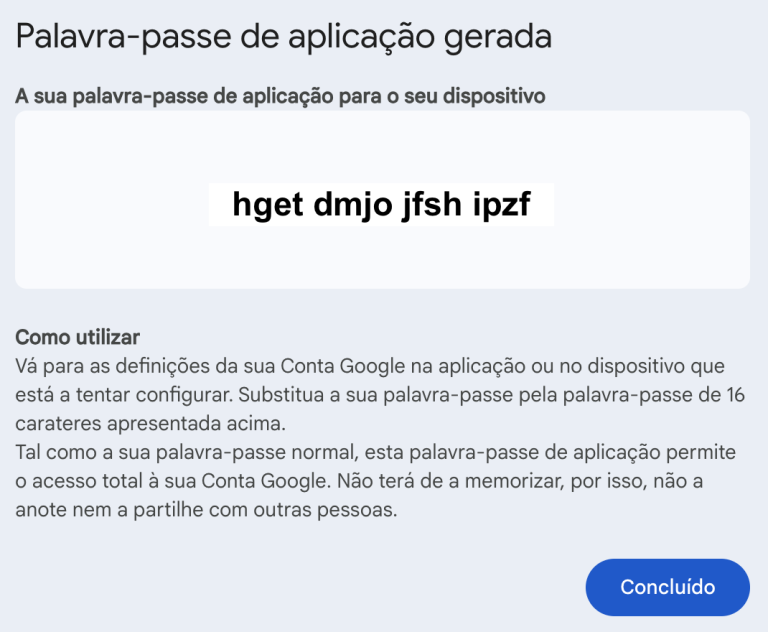
- Copy the 16-character password that appears — it is only shown once.
On Google Workspace, if the page says app passwords are not available, your organization’s administrator has to allow them.
3. Set up in GC
Go to Administration >> Email >> Sending Accounts, click Add and choose the Gmail App Password type.
| Field | What to fill in |
|---|---|
| Username | Your Gmail address |
| Password | The app password copied in the previous step |
| E-Mail: From / Name | Sender and name the recipient sees |
Save and click Test. The Gmail server is filled in automatically.
❓ If it stops working
- Did you change your Google account password? Google revokes app passwords: create a new one and update it in GC.
- Did you turn off 2-Step Verification? App passwords stop working until you turn it back on.